
How to Automate Business Processes With AI: A Team Guide
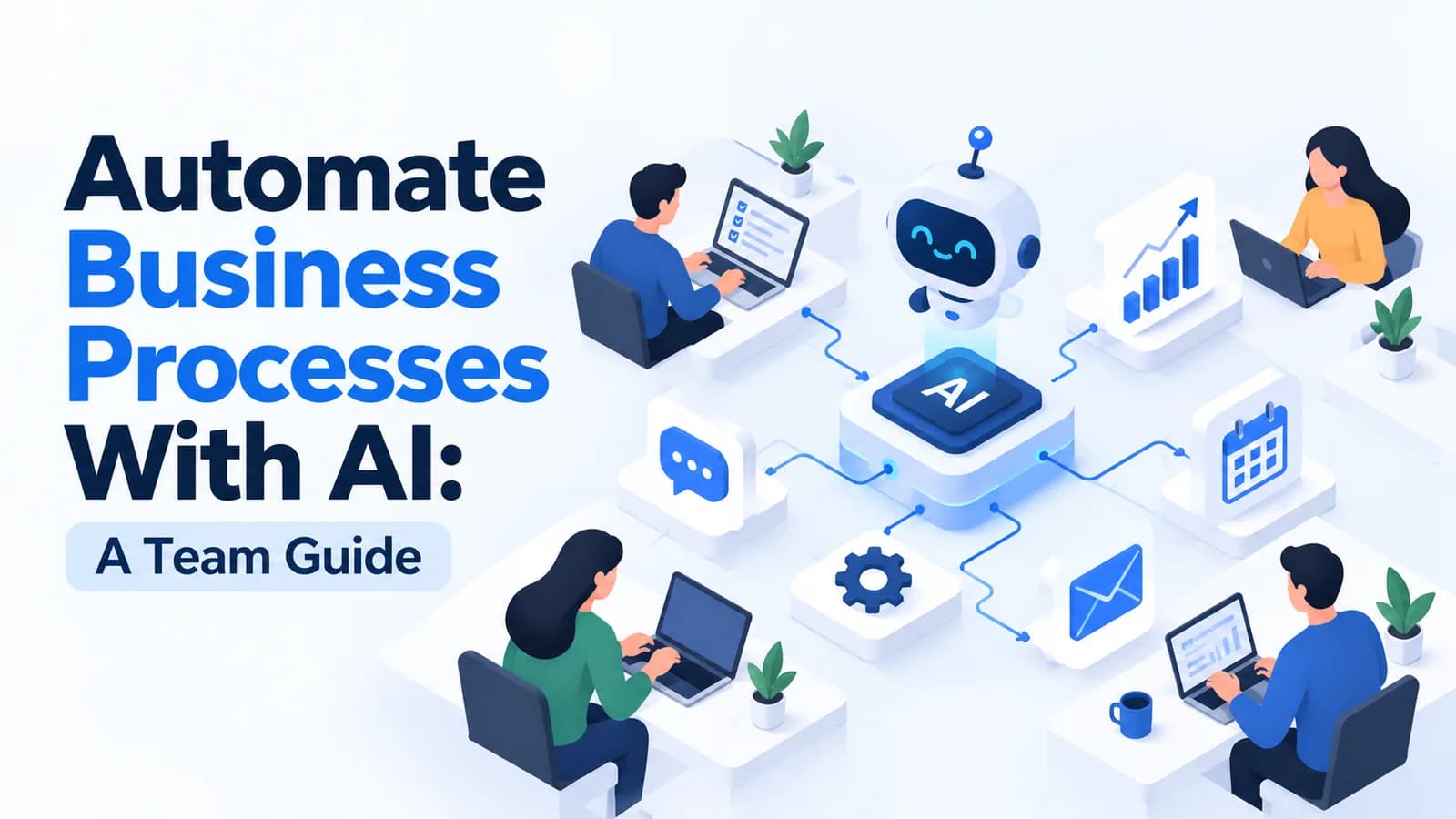
Quick answer: To automate business processes with AI, start small. Map one repeated process, pick the steps that are high-volume and predictable, connect your apps with an automation tool, and add AI where the work needs reading, sorting or drafting. Keep a person in the loop for anything that reaches a customer or moves money. Test for a few weeks, measure the time saved, then move on to the next process.
Every team has work that repeats every day: copying data between apps, sorting emails, chasing follow-ups, typing invoice details, building the same weekly report. This work is important, but it is not where your people add the most value.
This guide explains how to automate business processes with AI in simple English. You will learn what to automate first, see real examples for each team, follow a step-by-step method, and avoid the most common mistakes.
What does it mean to automate a process with AI?
Business automation is not new. For years, teams have used rules like "when a form is submitted, add a row to the spreadsheet." That still works well for simple, fixed steps.
AI adds something new: it can handle steps that need a little understanding.
| Feature | Rule-based automation | Automation with AI |
|---|---|---|
| Good at | Fixed, predictable steps | Steps that need reading, sorting or writing |
| Example | Copy a form into a spreadsheet | Read an email and decide if it is a sales lead, a complaint or a question |
| Handles messy input? | No, it needs exact formats | Yes, it can read free text and documents |
| Needs human review? | Rarely | Yes, for important outputs |
Most useful workflows combine both. Rules move the information between apps, and AI does the reading, summarising and drafting in the middle.
Which processes should you automate first?
Not every process is a good candidate. The best first choices meet most of these five tests:
- It happens often. Daily or weekly work saves more time than a yearly task.
- The steps are mostly the same each time. If every case is different, automation will struggle.
- The information is digital. Emails, forms, spreadsheets and PDFs are easy to work with. Handwritten notes are harder.
- It takes real time today. If a task takes two minutes a month, it is not worth automating.
- The risk is low if something goes wrong. Start where a mistake is easy to spot and fix.
Leave these alone at first: decisions that need careful human judgment, such as hiring or legal approvals; processes your team does not agree on yet; and anything involving sensitive personal data until your safeguards are in place.
AI workflow automation examples for every team
Here are practical examples you can adapt. Each one combines simple rules with an AI step.
| Team | Process | Where AI helps |
|---|---|---|
| Sales | New website enquiry | Summarises the enquiry, adds it to the CRM and drafts a first reply for review |
| Marketing | Weekly social content | Turns a blog post into draft posts for each channel, ready for approval |
| Customer support | Incoming tickets | Sorts each ticket by topic and urgency, and suggests a reply from your help articles |
| HR | Job applications | Checks applications against the role's must-have list and summarises each one for the hiring manager |
| Finance | Supplier invoices | Reads the invoice, extracts the key fields and enters them into the accounts system |
| Operations | Weekly report | Pulls numbers from several sheets and writes a short summary of what changed |
Sales: never lose a lead
When a new enquiry arrives, the automation adds it to your CRM (customer relationship management system), asks AI to summarise what the customer wants, and drafts a reply. A salesperson reads the draft, edits it and sends it. Leads get a response in minutes instead of hours.
Customer support: faster first replies
AI reads each new ticket, tags it, for example "billing" or "delivery", and marks urgent ones. It then suggests a reply based on your existing help articles. Agents spend their time checking and personalising answers instead of starting from a blank page.
Finance: less manual data entry
Typing details from invoices, purchase orders and forms is slow and error-prone. Intelligent document processing reads these documents, extracts the data and passes it to your systems, with a person checking anything unusual. This is one of the areas our intelligent document processing service covers.
HR and operations: consistent, quicker routine work
For HR, AI can summarise applications against a fixed checklist, while the hiring decision stays with people. For operations, a weekly report that took half a day can become a draft that is ready on Monday morning, needing only a quick review.
How to automate business processes with AI: 7 steps
1. Map the process as it is today
Write down every step, who does it, which apps are involved and how long it takes. You will often find steps that can simply be removed before you automate anything.
2. Pick one process to start
Use the five tests above and choose one process with a clear owner. One working automation teaches your team more than five half-finished ones.
3. Decide where AI is really needed
Use plain rules for moving data, and add AI only for the steps that need reading, sorting or writing. Fewer AI steps means fewer places for mistakes.
4. Choose the right tool
- Microsoft Power Automate suits teams that work in Microsoft 365.
- Zapier and Make connect thousands of apps and are built for non-technical users.
- n8n suits teams with some technical skill who want to host the tool themselves.
- Built-in automation in your CRM, helpdesk or accounting software is often the simplest place to start.
For a comparison of these tools, see our guide to AI tools for small business.
5. Keep a person in the loop
Add a review step for anything that goes to a customer, changes financial records or affects people's jobs. A good rule: AI drafts, people decide.
6. Test for two to four weeks
Run the automation alongside the old way, or on a small share of the work. Check its results every day at first and fix problems early.
7. Measure, then expand
Compare the results with your starting point, then move on to the next process. Keep a simple list of every automation, what it does and who owns it.
How to measure the results
Track a few simple numbers before and after:
- Time saved: hours per week the team no longer spends on the task
- Turnaround time: how fast a lead, ticket or invoice is handled
- Error rate: mistakes caught in review, compared with manual work
- Volume handled: how much more work the team can manage without extra hours
If an automation saves little time or needs constant fixing, change it or switch it off. Not every process is worth automating.
Common mistakes to avoid
- Automating a broken process. Fix the process first, or you will just make mistakes faster.
- Starting too big. One small, working automation beats a large project that never launches.
- Removing human review too early. Keep checks in place until the results are reliable.
- No owner. Every workflow needs a person who is responsible when it breaks.
- Ignoring data privacy. Limit what personal data each automation can see. In India, this links to the Digital Personal Data Protection (DPDP) Act, 2023, so check with your compliance team before automating anything that handles personal data. An AI usage policy gives your team clear rules for this.
- Skipping training. Automation changes how people work. Teams need to know what the workflow does and how to handle exceptions.
AI tools for team productivity: the people side
Automation works best when the team already uses AI well in their daily work. The most useful AI tools for team productivity are often the ones you already have: Microsoft Copilot in Microsoft 365, or Gemini in Google Workspace. Teams that can write clear prompts and check AI answers find more processes to automate, and they spot problems sooner.
If your team is new to AI, start with training before automation. Our guide on AI training for employees explains how to plan it, and our Microsoft Copilot training guide is a good starting point for Microsoft 365 teams.
When to get expert help
Simple automations can be built by your own team in an afternoon. Get help when a workflow:
- connects several systems, especially older ones,
- handles sensitive customer, financial or employee data,
- processes large volumes of documents, or
- needs to run reliably across many teams.
AivaanTech's AI workflow automation services map your processes, build working automations around the tools you already use and train your team to run them. For a wider plan across the business, see our AI consulting services. To build your team's skills first, see our corporate AI training.
Tell us what is manual today and we will help you find the best place to start.
Frequently asked questions
How do you automate business processes with AI?
What is the difference between normal automation and AI automation?
Which business processes should you automate first?
What are some AI workflow automation examples?
Do we need developers to automate processes with AI?
Is it safe to use AI in business automation?
Ready to go deeper?
Explore the full 30-day AI Tool Mastery certification — prompt engineering, 11+ tools and a real capstone project.