
How to Use ChatGPT for Excel (Formulas, Data Cleaning & Charts)
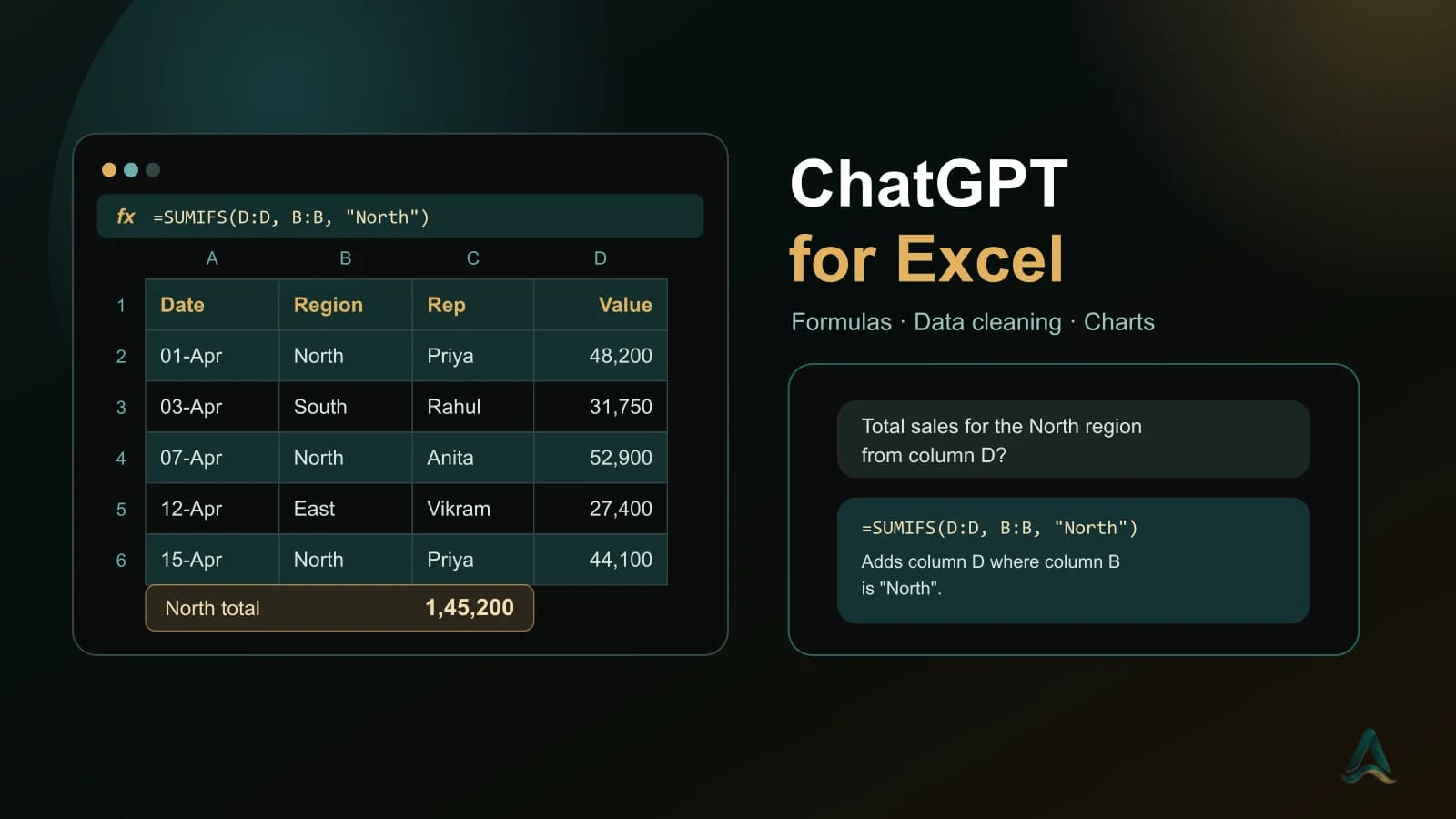
Excel is where a huge amount of everyday office work happens — sales reports, attendance sheets, budgets, inventory lists. ChatGPT won't replace Excel, but it removes the slowest parts: remembering formula syntax, cleaning messy data, and turning a big table into something you can explain in a meeting.
This guide covers the five most useful ways to use ChatGPT for Excel, with prompts you can copy, and the mistakes that cause wrong answers.
Two ways to use ChatGPT with Excel
| Approach | How it works | Best for |
|---|---|---|
| Ask for formulas | You describe your columns; ChatGPT writes the formula; you paste it into Excel | Any data, including confidential files that shouldn't leave your computer |
| Upload the file | You attach the .xlsx or .csv; ChatGPT reads it, calculates, and can return charts or a cleaned file | Quick analysis, summaries and charts on data you're allowed to share |
Start with the first approach. It works with every version of Excel and keeps your data on your own computer.
1. Write formulas from a plain-English description
The trick is to tell ChatGPT exactly what your sheet looks like — column letters, what's in them, and where the result should go. Vague prompts get vague formulas.
I'm using Excel 365. My sheet "Sales" has: - Column A: Order date - Column B: Region (North, South, East, West) - Column C: Salesperson - Column D: Order value in rupees In cell G2, I want the total order value for the North region from 1 April 2026 onwards. Write the formula, then explain each part in one line.
ChatGPT will typically answer with something like =SUMIFS(D:D, B:B, "North", A:A, ">="&DATE(2026,4,1)), plus a short explanation of each argument.
Always mention your Excel version. Functions like XLOOKUP, FILTER, UNIQUE and TEXTSPLIT exist in Excel 365 and 2021 but not in Excel 2016 or 2019. If you're on an older version, ChatGPT will use VLOOKUP, INDEX/MATCH or LEFT/FIND instead.
2. Understand and fix formulas you didn't write
Inherited a spreadsheet full of nested formulas? Paste the formula in and ask what it does.
Explain this Excel formula step by step, in plain English, as if I'm new to Excel. Then tell me if there's a simpler way to write it. =IFERROR(INDEX(Prices!$B:$B, MATCH(A2, Prices!$A:$A, 0)), "Not found")
The same works for errors. Paste the formula, say which error you're seeing (#N/A, #VALUE!, #REF!), and describe the data in the cells it refers to. Most of the time the cause is something small — a number stored as text, an extra space, or a range that shifted when rows were deleted.
3. Clean messy data
Data exported from other systems is rarely clean. Names in mixed case, extra spaces, full names in one column, dates stored as text. ChatGPT is very good at writing the formulas to fix these.
Column A has customer names in mixed formats like " sharma, PRIYA " and "rahul VERMA". I'm using Excel 365. Give me formulas to: 1. Remove extra spaces and fix the capitalisation (Priya Sharma) 2. Handle both "Last, First" and "First Last" formats 3. Split the result into first name and last name columns Put each formula in its own step with the cell it goes in.
For simple cleaning, a formula like =PROPER(TRIM(A2)) fixes spacing and capitalisation in one go. For anything more complex, ask ChatGPT to also suggest how to do it with Power Query, which is better when you repeat the same cleaning every week.
4. Summarise and analyse a spreadsheet
If your data can be shared, upload the file and ask questions in plain English. ChatGPT reads the sheet, runs the calculations and explains what it found.
I've uploaded our sales data for April–September 2026. Each row is one order. 1. Give me total sales by month and by region in a table. 2. Which three salespeople grew the most from Q1 to Q2? 3. Point out anything unusual — sudden drops, duplicate orders, or values that look like data-entry mistakes. Show the numbers you used, so I can check them.
That last line matters. Asking ChatGPT to show its working makes it much easier to spot a mistake before the numbers end up in a report.
5. Build charts and pivot tables
ChatGPT can create a chart directly from an uploaded file, but you'll often want the chart inside your own workbook. Ask for the steps instead:
In Excel 365, I want a pivot table showing total order value by region (rows) and by month (columns), plus a clustered column chart from it. Give me numbered click-by-click steps, starting from my data in Sales!A1:D2000.
You can also ask which chart type fits your data best — for example, whether a trend over time works better as a line chart or a column chart, and how to label it so it's clear in a presentation.
Excel formulas ChatGPT gets wrong
ChatGPT writes correct formulas most of the time, but a few situations trip it up. If a formula looks right and still misbehaves, check these first.
- Volatile functions.
TODAY,NOW,RAND,OFFSETandINDIRECTrecalculate every time anything in the workbook changes. ChatGPT often reaches forOFFSETorINDIRECTbecause they're flexible, but on a large sheet they can make Excel noticeably slow. Ask for a version usingINDEXor a structured table reference instead. - Array behaviour. In Excel 365 and 2021, formulas like
FILTERandUNIQUE"spill" results into the cells below. If those cells aren't empty you'll see a#SPILL!error. In older versions, an array formula may need to be entered with Ctrl+Shift+Enter. Tell ChatGPT your version and whether the cells below are clear. - Locale separators. Many regional Excel settings use semicolons instead of commas between arguments. If you paste a formula and Excel rejects it, try swapping
,for;, or tell ChatGPT your regional setting and ask it to write the formula that way. - Numbers stored as text. If a formula returns
0or#VALUE!on data that looks fine, the numbers may be text. Ask ChatGPT how to check this and convert them. - Whole-column references. Ranges like
D:Dare fine in most cases, but they can slow down heavy formulas such asSUMPRODUCT. Ask for exact ranges or a table reference when the file is large.
A good habit is to paste the error message back into the chat with a sample row. ChatGPT is usually better at fixing its own formula once it can see what went wrong.
Common mistakes to avoid
- Not describing the sheet. "Write a formula to total sales" gets a guess. Column letters, sheet names and an example row get a formula that works first time.
- Not mentioning the Excel version. This is the most common reason a formula shows
#NAME?. - Trusting the first answer without testing. Check every formula on a few rows where you already know the right result.
- Uploading confidential data. Remove or mask names, phone numbers, salaries and customer details first — or ask for the formula and run it on the real file yourself.
- Asking for everything in one prompt. Clean the data first, then analyse it, then build the chart. Smaller steps give more reliable results.
Most of these come down to the same skill: writing a clear, specific prompt. If you want to get better at that, see 5 ChatGPT prompt templates that actually work.
Free vs paid ChatGPT for Excel
You can get a lot from the free plan, especially for the first approach in this guide: describing your sheet and asking for a formula needs no file upload at all. Paid plans generally offer higher limits and better support for working with uploaded files, data analysis and charts. Exactly what each plan includes changes often, so check the current limits on OpenAI's plans page before you rely on file upload for regular work.
If you're just starting out, use the free plan for formulas and explanations, and only consider upgrading once you're regularly analysing uploaded spreadsheets.
ChatGPT or Microsoft Copilot for Excel?
Microsoft Copilot works inside Excel itself, if your organisation has a Microsoft 365 Copilot licence. ChatGPT works with any version of Excel, and is often quicker for writing and explaining formulas or analysing an uploaded file. They're not either/or — many professionals use Copilot for work inside the workbook and ChatGPT for thinking through the problem. Knowing which tool to reach for is a skill in itself.
Learn ChatGPT properly — with a certificate
Using ChatGPT for Excel is one example of a bigger skill: getting reliable, checkable results from AI at work. AivaanTech's AI Tool Mastery certification teaches exactly that. It covers ChatGPT's features and a hands-on practice session, prompting for data, summaries and structured output, and how to evaluate and improve AI answers — alongside Claude, Gemini, Microsoft Copilot, Perplexity and other leading tools.
It's a 30-day program that needs no coding or prior AI knowledge, and ends with a certificate you can add to your CV and LinkedIn.
Frequently asked questions
Can ChatGPT write Excel formulas?
Can I upload an Excel file to ChatGPT?
Is it safe to upload company spreadsheets to ChatGPT?
Should I use ChatGPT or Microsoft Copilot for Excel?
Do I need to know Excel well to use ChatGPT with it?
Can I use ChatGPT for Google Sheets too?
Is there a file size or row limit when I upload a spreadsheet to ChatGPT?
Ready to go deeper?
Explore the full 30-day AI Tool Mastery certification — prompt engineering, 11+ tools and a real capstone project.