
How to Use Copilot in Excel: A Beginner's Guide
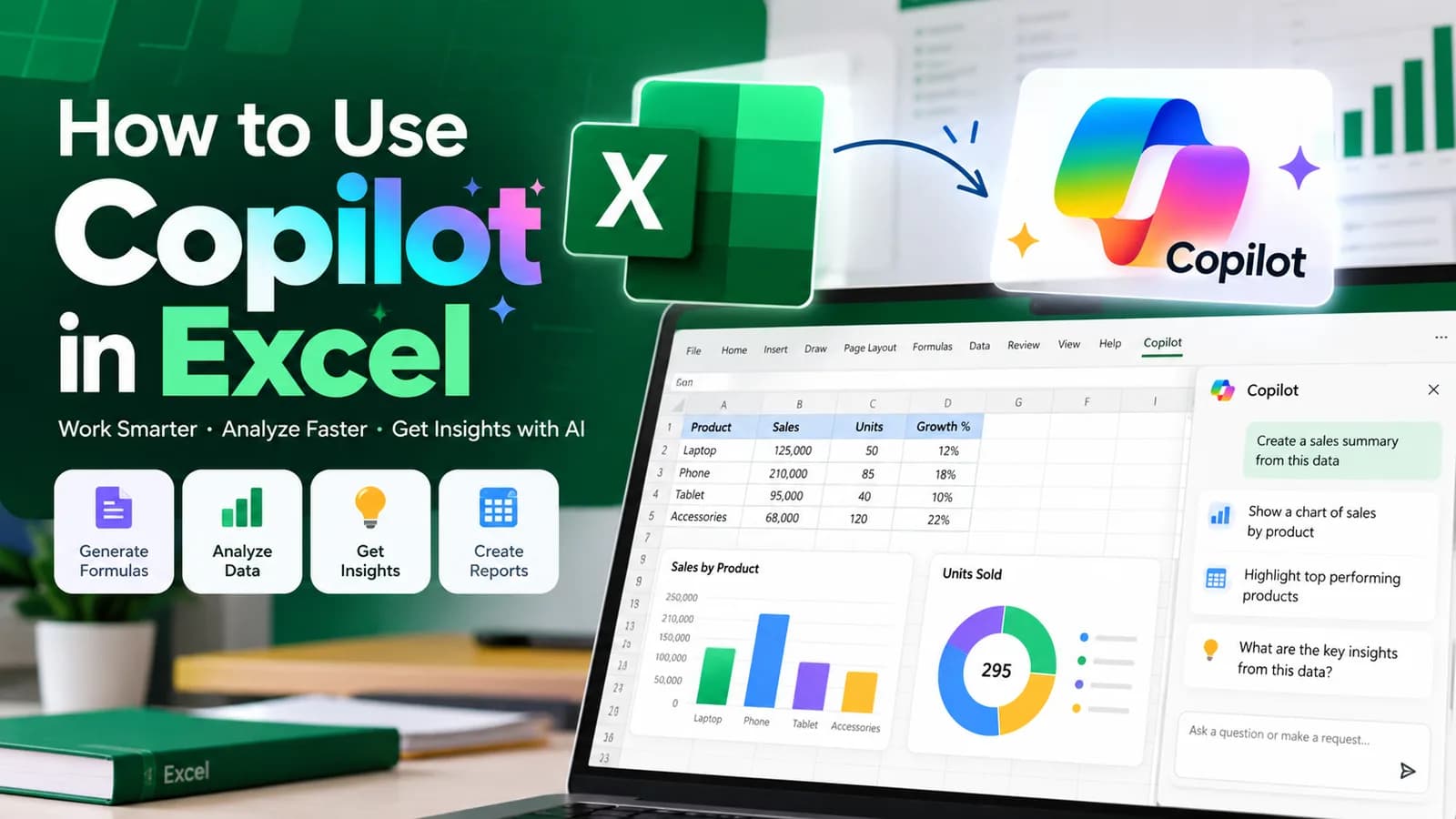
Quick answer: To use Copilot in Excel, open your workbook, select the Copilot icon to open the Copilot pane, and type what you want in plain English. Copilot can summarise your data, explain formulas, create charts and PivotTables, and clean up messy columns. For the best results, keep your data in a clean table, and always check the numbers before you share them.
If you spend hours each week on spreadsheets, Copilot in Excel can take over the boring parts: writing formulas, cleaning columns and finding what changed. But a lot of beginners open it, type something vague and get a weak answer.
This guide shows you how to use Copilot in Excel in simple English: what you need, what it can do, five prompts you can copy, and the mistakes to avoid. It is part of our wider Microsoft Copilot training guide, which covers Word, PowerPoint, Outlook and Teams too.
What can Copilot in Excel do?
According to Microsoft's support page, Copilot in Excel can:
- Answer questions about your data as summaries, charts, PivotTables, trends or outliers
- Create and edit formulas, charts and PivotTables
- Sort, filter and highlight data
- Edit your worksheet, including values, formatting and data validation
- Summarise data across more than one sheet
- Bring in information from the web, with citations, or from other workbooks you have saved
Copilot works in three modes. Microsoft's names may change, so look for them in the pane:
| Mode | What it does | Use it when |
|---|---|---|
| Allow editing | Changes the workbook for you | You trust the request and can undo it |
| Plan | Shows its plan for you to approve first | The task is big, or you want control |
| Chat only | Answers questions without changing anything | You are exploring or learning |
Tip for beginners: start with Chat only or Plan. You see what Copilot would do before it touches your file.
What you need before you start
Before you try Copilot, check these four things:
- A plan that includes Copilot. Microsoft says Copilot in Excel may not be included in every subscription, and your organisation can switch it off. At work, Microsoft 365 Copilot is a paid licence. For home use, Microsoft lists Copilot features in plans such as Microsoft 365 Personal, Family and Premium, and says some features are for the subscription owner only. Plans, limits and prices change often, so check Microsoft's official page for yours.
- The right place to open it. Copilot works in Excel on Windows, Mac and the web. Phones and tablets may only offer chat for now.
- A saved file. Copilot may need your file saved to OneDrive or SharePoint with AutoSave on. If the button is missing or greyed out, save the file there first.
- Clean data. This matters most. Read the next section.
Get your data ready first
Copilot reads your sheet the way a new colleague would. If the sheet is confusing, the answer will be too. Do these four things:
- Turn your data into a table. Click inside the data and press Ctrl+T (Cmd+T on Mac).
- Use clear column headings in the first row, such as "Order Date", "Region" and "Sales Amount". Avoid "Column1" or blank headings.
- Remove blank rows and merged cells inside the data.
- Keep one type of data per column. Dates in one column, amounts in another, no text mixed into number columns.
This takes two minutes and often decides whether Copilot gives you a good answer or a strange one. If you want to practise the same prompting habits in another tool, see our guide on how to use ChatGPT for Excel.
How to use Copilot in Excel: step by step
- Open your workbook and make sure your data is in a table.
- Select the Copilot icon in the lower-right corner of Excel to open the Copilot pane.
- Choose a mode. Start with Chat only or Plan if you are new.
- Type your request with a goal, the columns involved and the format you want.
- Read the answer and check it against your data.
- Follow up. Say "show it as a chart," "only for the last quarter" or "explain that formula."
- Undo or edit if the result is not what you wanted.
5 things to do with Copilot in Excel
1. Analyse your data and find trends
Instead of building a PivotTable by hand, ask a question in plain English.
Look at the Sales table. Summarise total sales by region and by month. Tell me which region grew the most and which fell the most. Show the result as a PivotTable and give me 3 short insights.
2. Explain a formula you did not write
This is one of the best uses for beginners. Select a cell with a long formula and ask Copilot to explain it.
Explain the formula in cell F2 in simple English, step by step. Tell me what each part does and what could make it show an error.
3. Create a new formula column
Describe the result you want. You do not need to remember the syntax.
Add a column to the Sales table called Profit Margin %. Calculate it as Profit divided by Sales Amount, shown as a percentage with one decimal place. Then explain the formula you used.
4. Make a chart
Create a column chart that compares total sales for each region this year and last year. Use clear titles and axis labels, and highlight the region with the biggest change.
5. Clean up messy data
In the Customers table, find rows with duplicate email addresses and show me them in a list before you delete anything. Also point out any dates that are not in the same format and any names with extra spaces.
Notice the last prompt asks Copilot to show you first. That habit protects your data.
How to write a good Excel prompt
The same four parts that work in every AI tool work here:
| Part | Example |
|---|---|
| Goal | "Find which product sold the least" |
| Where | "In the Sales table, using the Product and Sales Amount columns" |
| Format | "Show a table of the bottom 5 and a bar chart" |
| Limits | "Only for 2026. Do not change my original data." |
A weak prompt is "analyse this." A strong prompt names the table, the columns, the result you want and what Copilot must not touch. Use the column names exactly as they appear in your sheet.
Common mistakes with Copilot in Excel
- Messy data. Merged cells, blank rows and unclear headings are the top cause of bad answers.
- Trusting the numbers. Copilot can misread a column or pick the wrong range. Check totals and averages by hand on a few rows.
- Letting it edit your only copy. Save a copy of important files first, or start in Plan or Chat only mode.
- Vague prompts. Name the columns and say what you want to see.
- Ignoring the explanation. If Copilot gives a formula, ask it to explain, so you learn and can spot mistakes.
- Sharing private data. Follow your company's AI policy before using Copilot on files with customer, salary or confidential data.
A note on the COPILOT function
You may see old articles about a COPILOT function, which let you type =COPILOT("your prompt") inside a cell. Microsoft says this function stopped being available in Excel on 14 September 2026. Old results stay as saved values, but a cell that recalculates now shows a #NAME? error. Microsoft points users to Copilot in the Copilot pane instead, where you describe the task in plain language. If you find a guide that tells you to use the function, it is out of date.
Copilot in Excel or ChatGPT: which should you use?
Both help with spreadsheets, and the prompting skills carry over. Copilot's big advantage is that it works inside your workbook, on your own data, with no copy and paste. ChatGPT is useful when you do not have Copilot, or when you want to talk through a problem before you build it. If you only have one, learn that one well first. For a wider view of which tools to learn, see AI tools for productivity: 11 worth learning in 2026.
A simple one-week plan to learn Copilot in Excel
| Day | Practice task |
|---|---|
| Day 1 | Turn one real sheet into a clean table and ask three questions about it |
| Day 2 | Ask Copilot to explain five formulas you already use |
| Day 3 | Create two formula columns with plain-English prompts |
| Day 4 | Make a chart and improve it with follow-up prompts |
| Day 5 | Clean a messy data sheet, asking Copilot to show changes first |
| Weekend | Build one repeatable weekly report and note how much time it saves |
Learn Copilot properly, with a certificate
Reading a guide is a good start, but a structured path saves time. AivaanTech's Microsoft Copilot course teaches Copilot in Word, Excel, PowerPoint and Outlook, with hands-on practice on real work tasks. It is taught inside the 30-day AI Tool Mastery certification, alongside ChatGPT, Claude, Gemini and other leading tools. It needs no coding or prior AI knowledge, and it ends with a certificate you can add to your CV and LinkedIn.
If you want to train a whole team, see AI training for employees or contact us.
Frequently asked questions
How do I use Copilot in Excel?
Is Copilot in Excel free?
Why can't I see Copilot in my Excel?
Does my data need to be in a table for Copilot to work?
Can Copilot write Excel formulas for me?
What happened to the COPILOT function in Excel?
Is the data Copilot gives me always correct?
Ready to go deeper?
Explore the full 30-day AI Tool Mastery certification — prompt engineering, 11+ tools and a real capstone project.