
AI Tools for Productivity: 11 Worth Learning in 2026
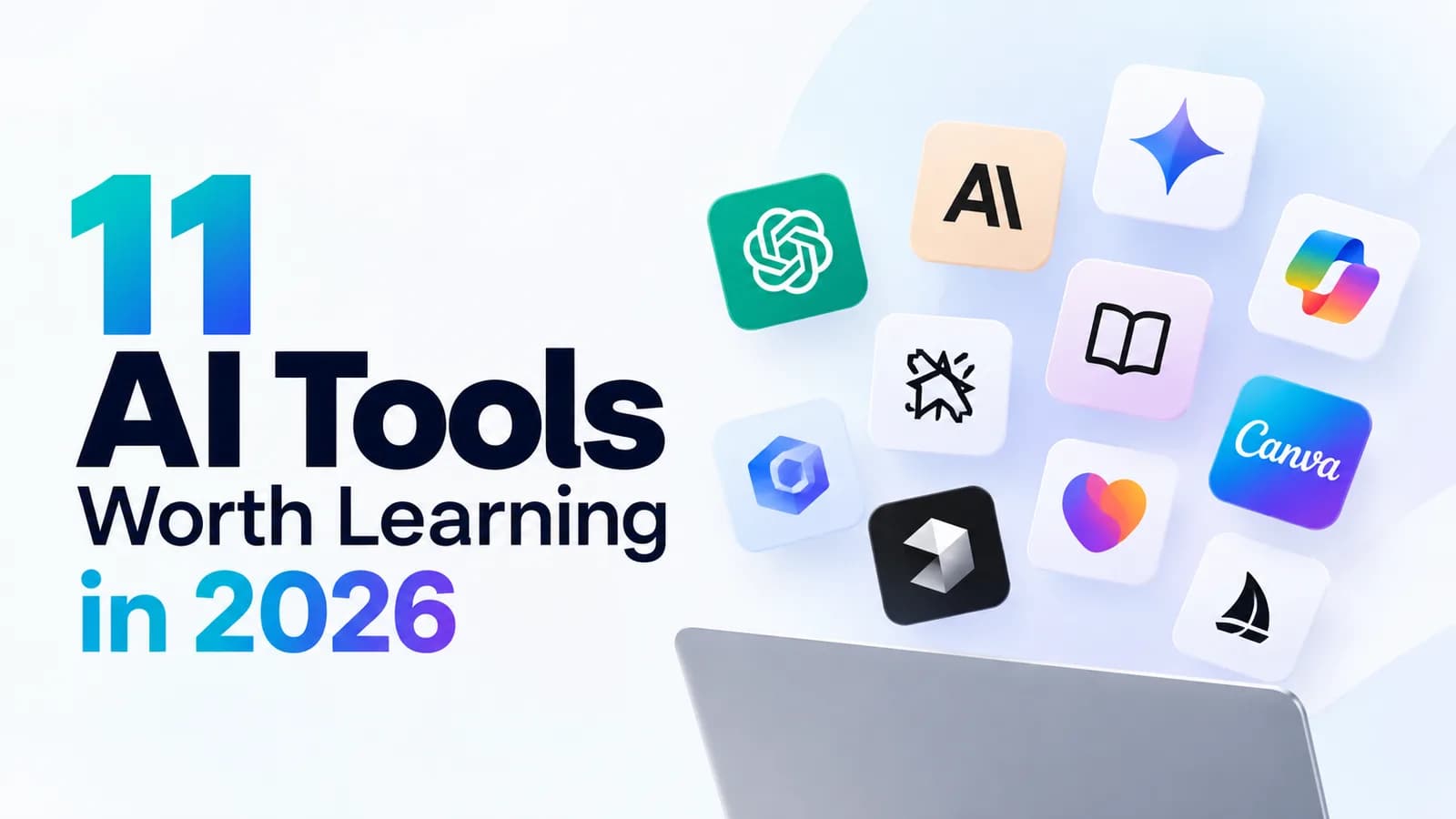
Quick answer: The AI tools for productivity worth learning in 2026 are ChatGPT, Claude, Gemini, Microsoft Copilot, Perplexity, NotebookLM, Cowork, Canva, Lovable, Replit and Cursor AI. You do not need all eleven. Learn one general assistant first, add one research tool, then add the tool that matches your job.
There are thousands of AI tools, and new ones appear every week. It is easy to feel behind. The good news is that a small set of tools covers almost everything most people need: writing, research, design, office work and even building simple apps.
This guide explains 11 AI tools worth learning in 2026 in simple English. For each one you will see what it does, who it suits, one task to try today, and one limit to remember. At the end there is a simple order for learning them.
The 11 AI tools at a glance
| Tool | Best for | Free plan | Learn it first if you... |
|---|---|---|---|
| ChatGPT | Writing, ideas, analysis, general help | Yes | want one assistant for most tasks |
| Claude | Long documents and careful writing | Yes | work with reports, contracts or long text |
| Gemini | Google apps, images, video | Yes | live in Gmail, Docs and Drive |
| Microsoft Copilot | Word, Excel, Outlook, Teams | Yes, in a limited form | work in a Microsoft 365 company |
| Perplexity | Research with sources | Yes | need quick, cited answers |
| NotebookLM | Questions about your own documents | Yes | study or research from PDFs and notes |
| Cowork | Multi-step tasks on your files | Paid Claude plan | want AI to do a whole task, not one answer |
| Canva | Design and presentations | Yes | make social posts, slides or posters |
| Lovable | Building a web app by describing it | Yes | want a simple app without coding |
| Replit | Building and hosting in the browser | Yes | want to build and publish online quickly |
| Cursor AI | Coding with AI help | Yes | want to learn code or build seriously |
Plans, limits and prices change often. Always check each tool's official page before you pay.
Everyday AI assistants
These four tools are the best place to start. You type a request in normal English, and they write, explain, summarise and brainstorm. Almost every other skill in this guide builds on them.
1. ChatGPT
What it does: ChatGPT, from OpenAI, is the most widely used AI assistant. It writes emails and posts, explains hard topics, helps with ideas, reads files you upload and can create images.
Best for: Writing, brainstorming, learning new topics and general help.
Try this today: Paste a messy paragraph and ask, "Rewrite this in a clear, friendly tone, under 100 words."
Limit: It can sound sure of itself and still be wrong, so always check facts and numbers.
Go deeper: See 5 ChatGPT prompt templates that actually work, how to use ChatGPT for Excel and 5 things you can do with GPT-6 Astra.
2. Claude
What it does: Claude, from Anthropic, is known for careful, natural writing and for handling long documents well. It is good at following detailed instructions and explaining its thinking.
Best for: Long reports, editing, summarising big documents and thoughtful writing.
Try this today: Upload a long document and ask, "Give me five key points and three questions I should ask the author."
Limit: Like every assistant, it can make mistakes, and free-plan usage limits can pause you during busy periods.
Go deeper: Read how to use Claude AI and ChatGPT vs Claude: which should you learn first?
3. Gemini
What it does: Gemini is Google's AI assistant. It works inside Google apps such as Gmail, Docs, Drive and YouTube, and it can create and edit images and short videos.
Best for: People who already work in Google Workspace, and anyone who wants AI images or video.
Try this today: Ask Gemini to summarise a long email thread, then draft a polite reply.
Limit: Some of the best features sit behind paid Google plans, and what you see can differ by country and account type.
Go deeper: Compare the two in Gemini vs ChatGPT: which AI should you use?
4. Microsoft Copilot
What it does: Microsoft Copilot is Microsoft's AI assistant. In a work setting it can help inside Word, Excel, PowerPoint, Outlook and Teams, for example by summarising a meeting or drafting a reply.
Best for: Anyone whose company uses Microsoft 365.
Try this today: After your next Teams meeting, ask Copilot for the key decisions and action items.
Limit: The full version inside your apps usually needs a paid work licence, so what you can use depends on your company.
Go deeper: Follow our step-by-step plan in Microsoft Copilot training: what to learn first.
AI tools for research
When you need facts, sources and understanding, these two tools are often better than a general chat assistant.
5. Perplexity
What it does: Perplexity works like a search engine that answers in full sentences and shows its sources, so you can click and check where each claim came from.
Best for: Quick research, comparing options, and finding up-to-date information with links.
Try this today: Ask, "What are the main differences between two popular project management tools? Give sources."
Limit: Citations make checking easier, but you still need to open the sources. Some answers lean on weak websites.
6. NotebookLM
What it does: NotebookLM, from Google, answers questions using only the documents you give it, such as PDFs, notes and web pages. It can also turn your material into summaries and audio overviews that sound like a short podcast.
Best for: Students, researchers and anyone studying from long documents.
Try this today: Upload a chapter or report and ask, "Create a study guide with ten questions and answers from this material."
Limit: It is only as good as the sources you add. If the documents are wrong or incomplete, the answers will be too.
An AI tool for agentic work
7. Cowork
What it does: Cowork is an agent mode in the Claude desktop app. Instead of giving one answer, it plans and carries out a multi-step task on files in folders you choose, such as sorting documents or turning a folder of receipts into a spreadsheet.
Best for: Repeated office tasks that take many steps, like organising files or building a first report from several documents.
Try this today: Give it a small folder of sample files and ask it to rename them in a consistent pattern and list what it changed.
Limit: It is newer than the others, it needs a paid Claude plan at the time of writing, and it acts on your files. Start with a copy of your files, keep clear instructions, and review the plan before it runs.
An AI tool for design
8. Canva
What it does: Canva is a design tool for posts, slides, posters and documents. Its AI features can generate text and images, remove backgrounds and suggest layouts.
Best for: Marketers, teachers, students and small business owners who need good-looking visuals fast.
Try this today: Ask Canva's AI to build a one-page poster for a small event, then edit the text so it matches your brand.
Limit: AI designs can look generic. Add your own brand colours, real photos and a clear message so your work stands out.
AI tools for building
These three tools let you create working software by describing what you want. They are the newest group, and they are very useful even if you never plan to become a developer.
9. Lovable
What it does: Lovable builds a working web app from a plain-English description. You say what the app should do, and it creates the screens and logic.
Best for: Non-coders who want a simple tool, such as a booking page, a small dashboard or a prototype to show a team.
Try this today: Ask for "a simple habit tracker where I can tick off daily habits and see my streak."
Limit: Free plans are limited, and complex apps still need careful testing and, often, a developer's review.
10. Replit
What it does: Replit lets you build, run and publish projects in your web browser, with nothing to install. Its AI agent can write the code for you from a description.
Best for: Beginners who want to go from idea to a live link quickly.
Try this today: Describe a small tool, such as a unit converter, and ask Replit to build it and give you a link to share.
Limit: Heavy use can run into usage limits and costs, so check what your plan includes before building something big.
11. Cursor AI
What it does: Cursor is a code editor you install on your computer, with AI built in. You can ask it to explain code, fix errors and write new features while you see every change.
Best for: People who want to learn how code works, or developers who want to work faster.
Try this today: Open a small project and ask, "Explain what this file does in simple words, line by line."
Limit: It is less beginner-friendly than Lovable or Replit, because you work with real project files and need to learn a few basics.
How to choose the right AI tools
Do not try to learn all eleven at once. Pick tools by the work you do.
| If you are a... | Start with | Then add |
|---|---|---|
| Student | ChatGPT or Gemini | NotebookLM, Perplexity |
| Office professional | Copilot or ChatGPT | Claude, Perplexity |
| Marketer or content creator | ChatGPT or Claude | Canva, Perplexity |
| Manager or business owner | ChatGPT or Copilot | Cowork, NotebookLM |
| Aspiring builder | ChatGPT | Lovable, Replit, then Cursor |
| Teacher or trainer | ChatGPT or Gemini | NotebookLM, Canva |
A simple rule: one assistant, one research tool, one tool for your job. Use them on real tasks for four weeks before adding more.
The best order to learn them
- Pick one general assistant (ChatGPT, Claude, Gemini or Copilot) and use it every day for two weeks.
- Learn prompting. Most weak AI results come from weak instructions, not weak tools.
- Add a research tool (Perplexity or NotebookLM) and learn to check sources.
- Add the tool for your job: Canva for design, Copilot for Microsoft 365, or Cowork for multi-step office work.
- Try building with Lovable or Replit once you are comfortable, and move to Cursor only if you want to learn code.
A prompt that works in almost every tool
The same simple structure works in all of these tools: a goal, some context, a format and a tone. Copy this and fill in the brackets:
Act as a helpful assistant for a [your job] in India. Goal: [what you need done]. Context: [who it is for and any background]. Format: [email / table / bullet points / short summary]. Tone: simple English, professional, no jargon. If you need more information from me, ask before you write.
If a tool gives you a weak answer, reply with a follow-up such as "make it shorter" or "add a real example." The second or third try is usually much better.
Common mistakes to avoid
- Collecting tools instead of using them. Two tools used well beat ten tools tried once.
- Trusting every answer. Check facts, numbers, names and anything that goes to a client or a customer.
- Sharing private data. Do not paste passwords, ID numbers or confidential company files into any tool your company has not approved.
- Skipping prompting. A clear prompt matters more than which tool you pick.
- Ignoring your company's rules. Many workplaces allow only approved AI tools. If you are unsure, ask first. Leaders planning this for a team can read our guide on AI training for employees.
Learn all 11 tools with a certificate
Learning from scattered videos takes time, and it is hard to know what to practise. AivaanTech's AI Tool Mastery certification teaches all eleven tools in this guide, ChatGPT, Claude, Gemini, Copilot, Perplexity, NotebookLM, Cowork, Canva, Lovable, Replit and Cursor AI, with hands-on practice and prompting skills that work in every tool.
It is a 30-day program that needs no coding or prior AI knowledge, and it ends with a certificate you can add to your CV and LinkedIn. To train a whole team, contact us.
Frequently asked questions
What are the best AI tools for productivity in 2026?
Which AI tool should a beginner learn first?
Are these AI tools free?
Do I need to know coding to use AI tools?
How many AI tools should I learn?
Is there a course that teaches all of these tools?
Ready to go deeper?
Explore the full 30-day AI Tool Mastery certification — prompt engineering, 11+ tools and a real capstone project.