
How to Train Copilot on Your Own Data (Simple Guide)
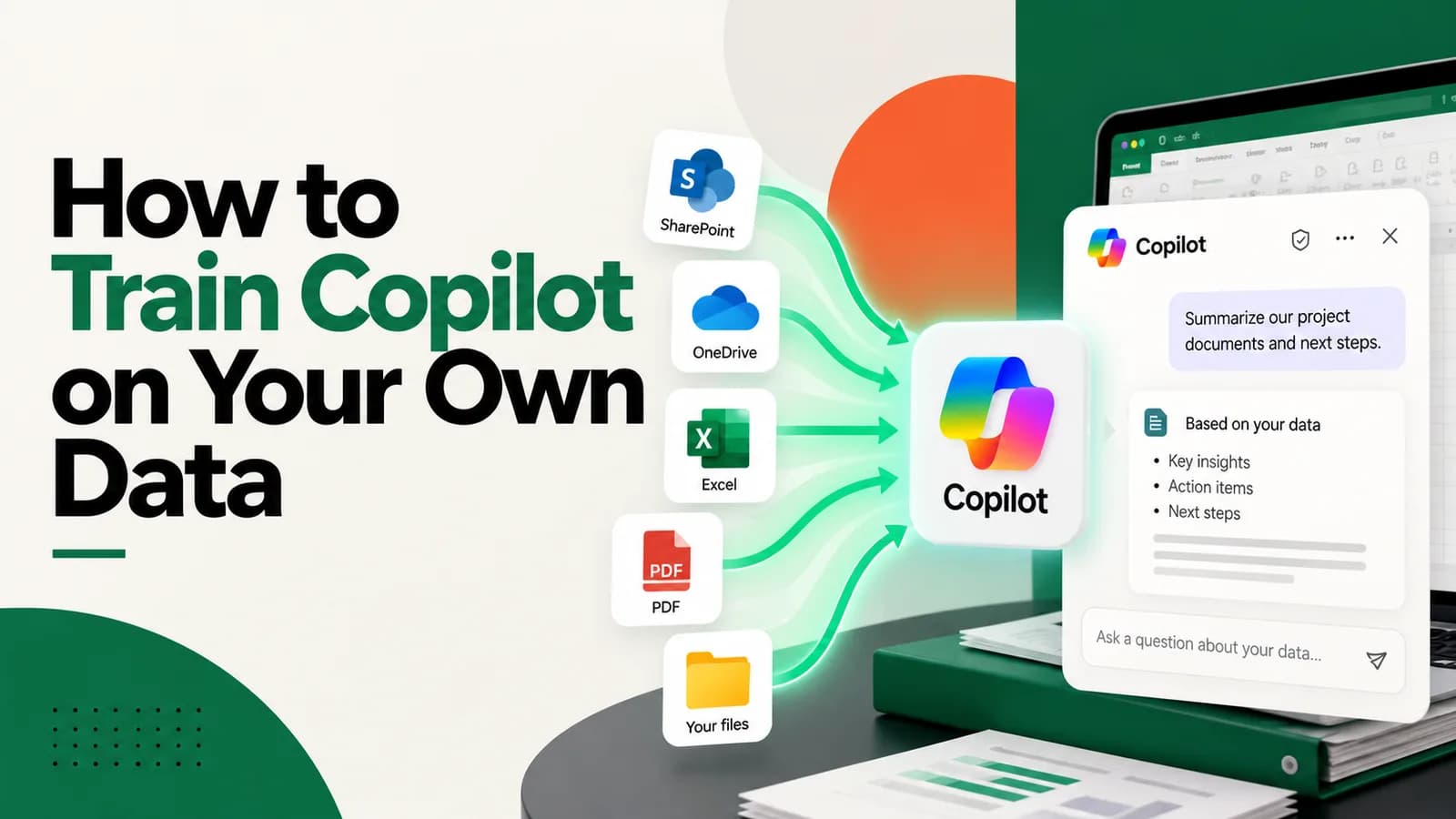
Quick answer: You do not "train" Copilot on your data the way you train a machine-learning model. Microsoft says your prompts, responses and Microsoft Graph data are not used to train the AI models behind Copilot. Instead, Copilot uses your files, emails and meetings as context when it answers, and in Copilot Studio you can build an agent that answers from the documents you choose. The real work is good data, clear instructions and the right permissions.
Many people search "how to train Copilot on your own data" because they want an AI that knows their business: their products, prices, policies and past projects. That is a fair goal. The word "train" is just a little misleading.
This guide explains in simple English what Copilot already knows, how to give it more of your information safely, and when to get expert help. It is part of our wider Microsoft Copilot training guide.
Do you really need to train Copilot?
Usually, no. There are three different things people mean by "training," and only the first two apply to Copilot:
| What you want | What it really means | Do you need to train a model? |
|---|---|---|
| Copilot to use my work files, emails and meetings | Copilot looks up your content when you ask a question | No. It already does this, with your permissions |
| An assistant that answers questions from my documents | You build an agent and connect knowledge sources | No. You set it up, not train it |
| A new AI model built on my data | Custom model development | Rarely needed, and a much bigger project |
For most businesses, the second row is what they actually need.
What Copilot already knows about your business
If you use the paid Copilot in Microsoft 365, it can already work with your organisation's content, through Microsoft Graph. That includes documents, emails, calendar, chats and meetings. Per Microsoft, it combines that content with what you are working on right now, such as the email thread you have open.
Two rules from Microsoft are worth remembering:
- It does not learn from your data. Prompts, responses and data accessed through Microsoft Graph are not used to train the foundation models behind Copilot.
- It follows your permissions. Copilot only shows organisational data that the person asking already has at least view permission to see.
Microsoft has also been renaming its products, so you may see "Microsoft 365 Copilot" and "Microsoft Copilot" used for the same work-account experience. The data and privacy points above apply either way. These notes are for work accounts. Personal Copilot accounts follow different terms, so check the privacy settings on your own account.
What this means for you: the best way to make Copilot "know" your business is to keep your documents tidy, current and stored in Microsoft 365 (SharePoint, OneDrive, Teams), and to write prompts that point to them.
Step 1: Clean up your data and permissions
Because Copilot follows permissions, this step comes first. Do not skip it.
- Find your key documents. Policies, price lists, product guides, standard replies, past proposals.
- Remove or archive the old versions. If three versions of a price list exist, Copilot may use the wrong one.
- Check who can open what. A file shared with "everyone" is available to everyone's Copilot. Fix oversharing before rollout, not after.
- Use clear file names and headings. "Refund policy 2026" is better than "Final_v3_new".
- Label sensitive files. Microsoft says Copilot honours the usage rights set by sensitivity labels and encryption in Microsoft Purview, so ask your IT team about them.
Step 2: Ask Copilot to use your own files
You can point Copilot straight at your own content with prompts like these. Adapt the names to your files.
Using the "Refund policy 2026" document in our Policies folder, answer this customer question in a friendly, short email: [paste question]. Quote the policy line you used so I can check it.
Summarise the last three meetings about the Delhi project. List the decisions, the open questions and who owns each action.
Always ask Copilot to show which file or meeting it used. That makes it easy to check, and it shows you quickly when your documents are out of date.
Step 3: Build an agent in Copilot Studio
If you want a shared assistant for your team or customers, such as an HR helper, a product Q&A bot or an onboarding guide, this is where Copilot Studio comes in.
According to Microsoft, Copilot Studio is a low-code studio for building and managing AI agents and workflows. You can create an agent by describing it in plain language, then test it before you publish. An agent follows your instructions, draws on the knowledge sources you connect, and can use tools to take actions.
Here is the simple path:
- Define the job. One clear purpose, such as "answer staff questions about leave and expenses."
- Write clear instructions. Say who it helps, what tone to use, what to do when it does not know, and what it must never do.
- Add knowledge sources. Microsoft lists options such as SharePoint, OneDrive, public websites and uploaded files. Pick only trusted, current sources.
- Test with real questions. Ask the 20 questions your team asks most often, and note every weak answer.
- Fix and improve. Update the instructions or the documents, and test again.
- Publish where people work. For example, Microsoft Teams or a website.
- Review it regularly. Check what people ask and update the documents.
Microsoft says the agent builder is designed so you can build capable solutions without an extensive technical background. Even so, a clear plan matters more than clever settings.
A starter prompt for the instructions box:
You are the HR helper for [company name]. Answer only from the leave, expense and travel policy documents you have been given. Use simple English. If the answer is not in the documents, say you do not know and tell the person to contact hr@[company].com. Never guess, and never share salary information.
Step 4: Keep it safe
An assistant that sees your business data needs rules.
- Permissions first. Remember that an agent is only as safe as the data it can reach. Microsoft notes that you should check an agent's terms and privacy statement to see how it handles your organisation's data.
- Start small. Begin with one team and one topic, not the whole company.
- Do not add what you would not share. Leave out passwords, ID numbers and anything confidential that the audience should not see.
- Keep a human in the loop. For anything that goes to customers or changes records, a person should review.
- Check answers. Like every AI tool, it can be wrong, so test often.
- Follow your company's AI policy. If you do not have one, our AI usage policy template is a good starting point.
Common mistakes
- Expecting it to "learn" by itself. Copilot does not absorb your data over time. If a document is wrong or old, the answers will be too.
- Connecting messy folders. More data is not better. A few clear, current documents beat a thousand old ones.
- Ignoring permissions. Fix oversharing before you switch Copilot on for everyone.
- Writing vague instructions. "Be helpful" is not enough. Say what to do when it does not know.
- No testing. Build a list of real questions and test before you publish.
- No owner. Someone must keep the documents and the agent up to date.
When to get expert help
You can set up a simple version yourself. Get help when:
- Your data is in many systems (CRM, ERP, databases) and not just Microsoft 365.
- The assistant will talk to customers, or handle sensitive data.
- You need it to take actions, such as creating tickets or updating records.
- You want to measure the time saved, or roll it out across several teams.
This is exactly the kind of work AivaanTech's business solutions and strategic consulting teams do: choose the right use case, prepare the data, build and test the assistant, and train your people. To see what is possible beyond Copilot, read how to automate business processes with AI.
A simple 30-day plan
| Week | Focus | Result |
|---|---|---|
| Week 1 | Choose one use case and tidy the documents and permissions | A short list of trusted files |
| Week 2 | Practise prompts that use your own files | A set of prompts that work |
| Week 3 | Build and test a small agent in Copilot Studio | A working pilot for one team |
| Week 4 | Fix gaps, add safety rules and train the team | A published agent and a review routine |
Learn Copilot properly, with a certificate
Understanding Copilot is the first step to using it well. AivaanTech's Microsoft Copilot course teaches Copilot in Word, Excel, PowerPoint and Outlook with hands-on practice, as part of the 30-day AI Tool Mastery certification, alongside ChatGPT, Claude, Gemini and other leading tools. It needs no coding or prior AI knowledge, and it ends with a certificate you can add to your CV and LinkedIn.
If you want to train a whole team, see AI training for employees or contact us.
Frequently asked questions
Can you train Copilot on your own data?
Does Microsoft Copilot use my company data to train its AI?
What data can Copilot see?
What is Copilot Studio?
Do I need coding skills to build a Copilot agent?
How do I train an AI assistant to understand my business needs?
Is Copilot Studio free?
Ready to go deeper?
Explore the full 30-day AI Tool Mastery certification — prompt engineering, 11+ tools and a real capstone project.